About Projects
Projects is where you organize internal, multi-step work that isn't a sales lead or a franchisee record. Site build-outs, launch checklists, internal initiatives: anything with tasks, phases, and a timeline fits here.
Go to Projects in the sidebar to see your brand's project list.
The projects table
Each row shows the project name, its status, progress (tasks completed out of the total), due date, estimated launch date, and when it was created.
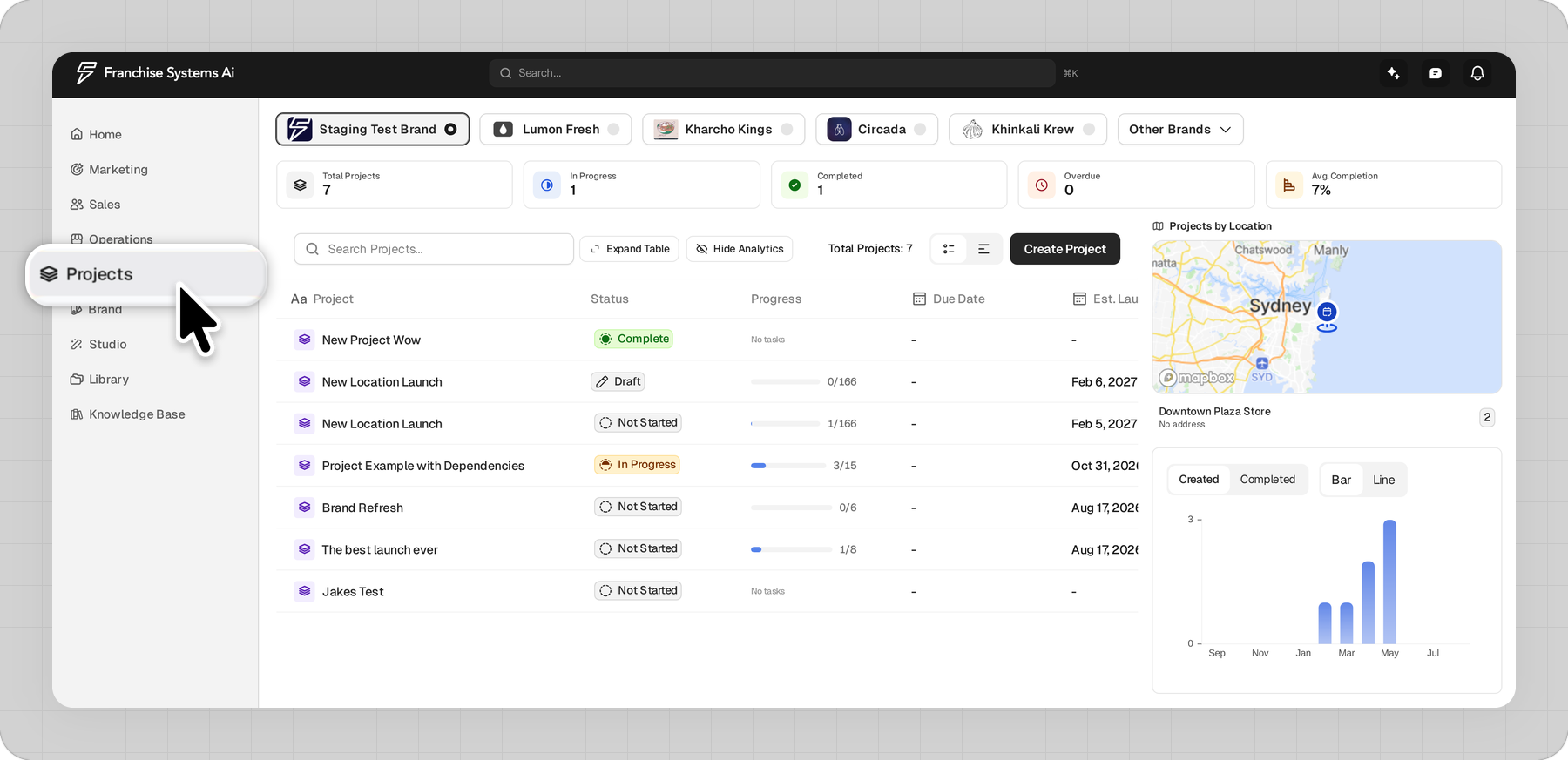
Use the search box to find a project by name.
Switch between Table and Timeline view using the toggle in the toolbar. Timeline lays every project out on a shared Gantt-style calendar so you can see overlapping work at a glance.

Creating a project
Click Create Project to start one. You'll choose between two starting points:
Blank project: an empty timeline with no preset phases. Good for one-off work. You can save it as a template later.
From a template: pick an existing template and its phases, tasks, and timing come pre-built. This option only appears once your brand has at least one template.

If your brand has no projects yet, the table shows an empty state with a Create Project button to get started.
Working inside a project
Click a project to open its detail view.
By default you see its task list. Switch between List and Timeline layout the same way you do on the main Projects table.

Use the Actions button to Add Task or Add Phase. Phases group related tasks together and can be reordered.

Click the paperclip icon to switch to the Artifacts view, which shows files attached to the project instead of tasks.

Filter and sort the task list from the toolbar, and toggle Show completed to include finished tasks.
Where project tasks show up elsewhere
Tasks that belong to a project also appear in your personal task list on the Home page. See About the Home Page for how the Tasks tab works.