About the Compliance Page
The Compliance page is where Franchise Systems Ai (FS Ai) tracks where you are allowed to sell franchises, which Franchise Disclosure Document (FDD) covers each state, and what is coming up for renewal.
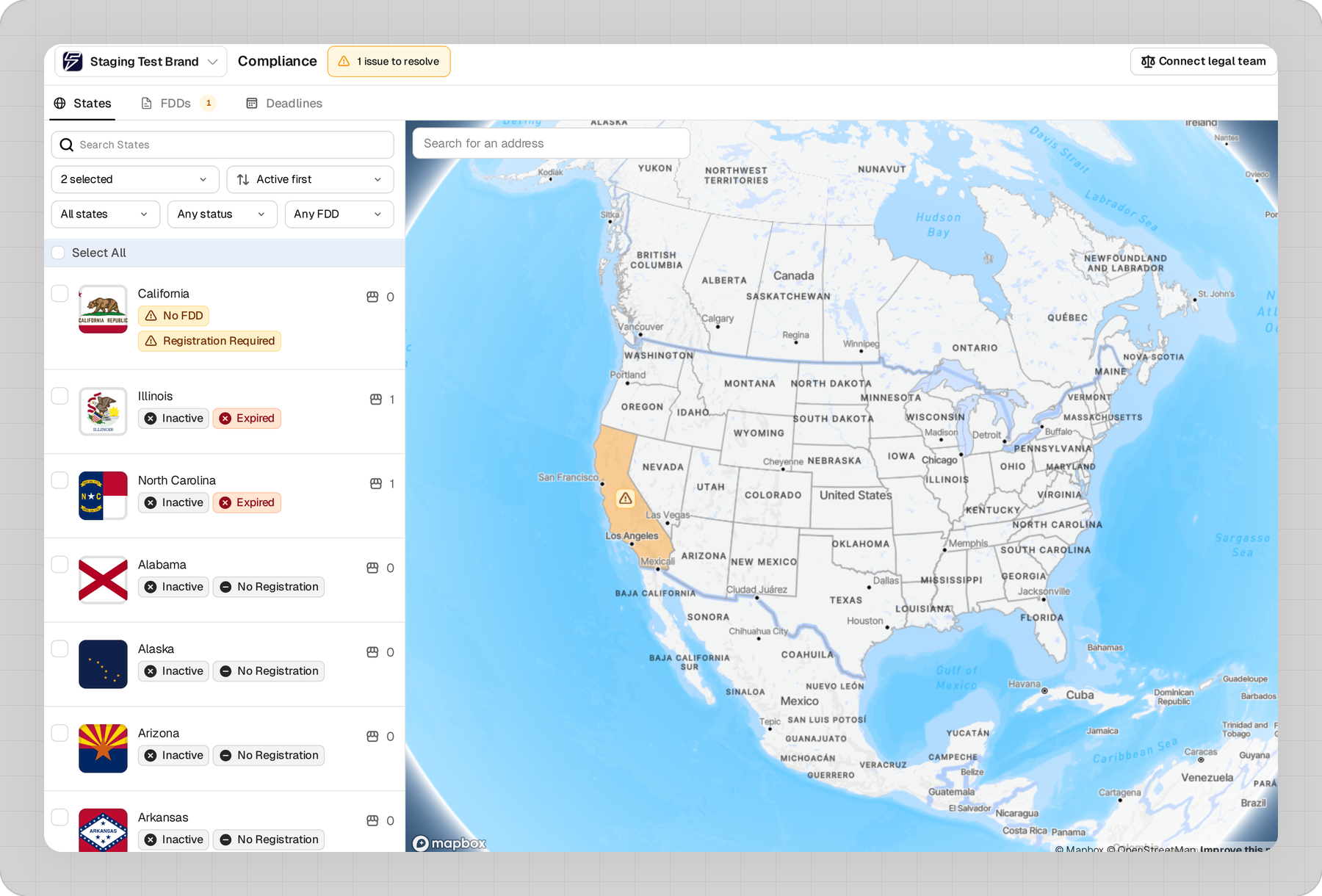
It is one screen: a working panel on the left, and a live map of the United States and Canada on the right.
Prerequisite: You need Sales read permission to open the page, and Sales write permission on the brand to change anything on it.
Where to find it
Go to Sales → Compliance.
The page shows one brand at a time. If you have access to more than one, a brand switcher sits at the top left.
How the page is laid out
Across the top: your brand, the page title, and an orange N issues to resolve chip. Below that, a row of tabs. Below that, the panel and the map.
The map never goes away. Whichever tab you are on, it stays on the right, shaded by state. Green means you are actively franchising there and clear to disclose. Orange means you are franchising there but something is missing. States you have not marked stay unshaded.
Selecting a state, either from a list row or on the map itself, opens that state's detail panel. Right-clicking a state on the map opens a shortcut menu for the same actions.
The tabs
States: every state and province, with your franchising status and FDD coverage for each. This is the tab the page opens on.
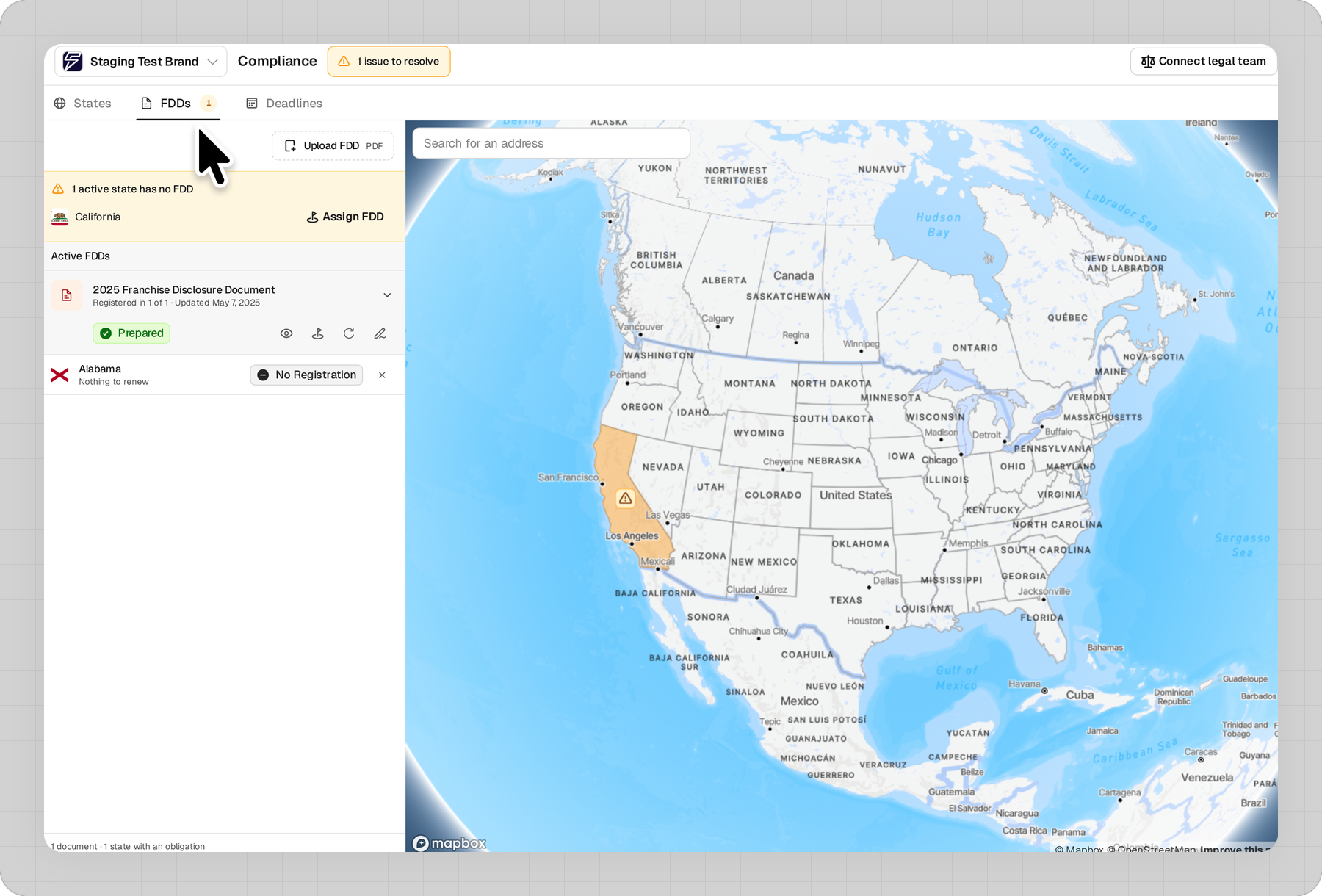
FDDs: your FDD documents, each one expandable to the states attached to it. A needs-attention band at the top calls out active states with no FDD, and documents not yet prepared for e-signature. Documents in your library that are not attached to any state are listed underneath, under From Your Library.
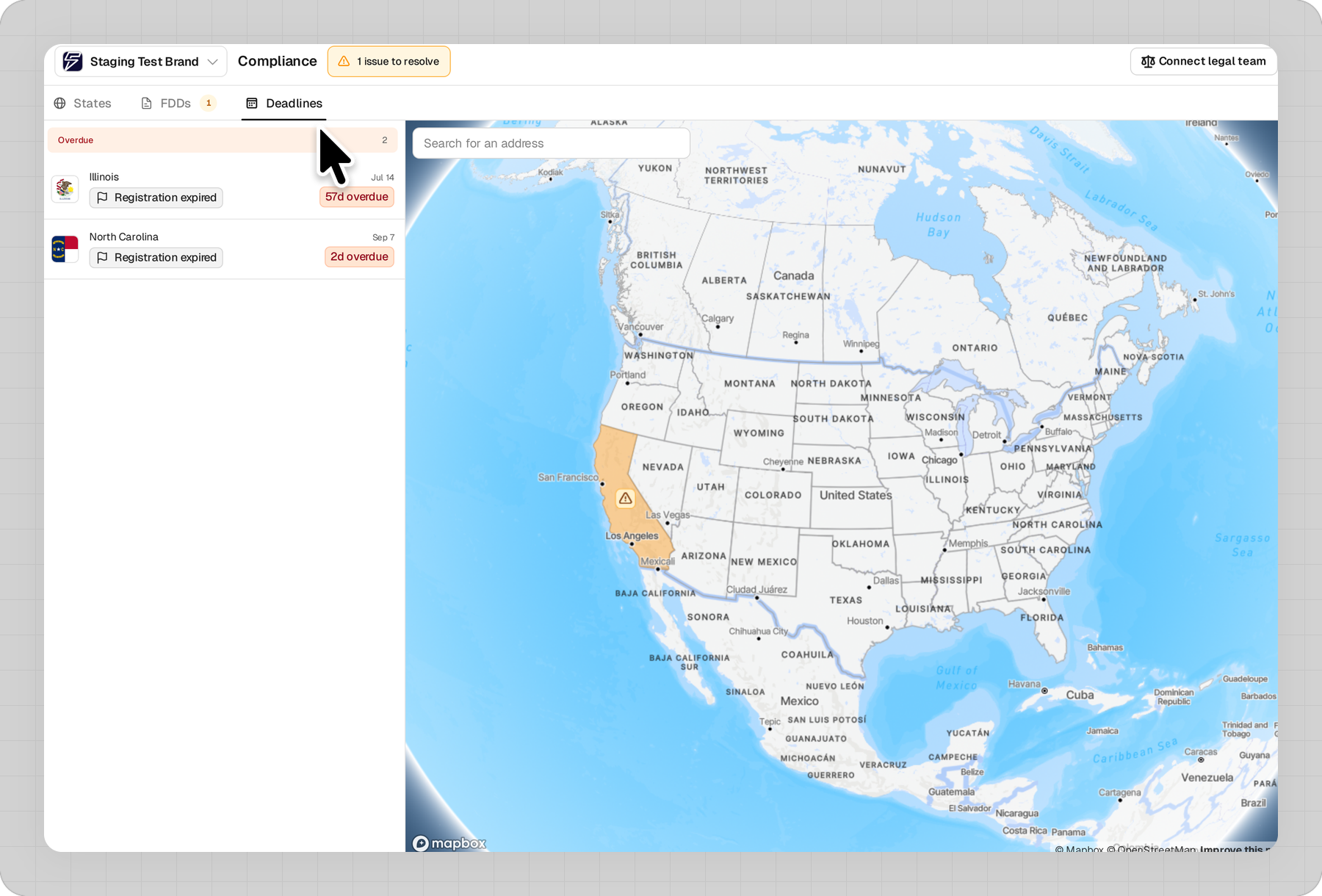
Deadlines: registration expirations and FDD renewal dates for every state that has one. They group under Overdue first, then by calendar month. Each row shows the date and how long is left, and opens that state when selected.
The page remembers which tab you were last on.
The issues chip
The orange chip counts two things together: active states with no FDD, and FDD documents that have not been prepared for e-signature yet.
Selecting it takes you to the FDDs tab, where both are itemized with the state or document named. The same number sits on the FDDs tab itself. When the count is zero, the chip is hidden.
Registration status
Every state row carries a registration status badge. There are six:
- Registered: filed and registered with the state
- Filed: filed, but the registration is not complete
- Filing Only: the state requires a filing, not a registration
- Registration Required: the state requires a registration you do not have on file
- Expired: the registration date on file has passed
- No Registration: the state requires neither
What each status means for your filing obligations, and how to update a state's filing status, are covered in How to Manage FDDs.
Narrowing the list
Above the state list sit a search box and a Select All checkbox, then five controls:
- Country: United States, Canada, US Territories. Pick any combination
- Sort: Active first, Name A-Z, Expiry soonest, Needs attention
- Franchising: All states, Franchising, Not franchising
- Status: any combination of the six registration statuses
- FDD: Any FDD, Has FDD, No FDD
These narrow the list only. The map stays whole, so you keep the full picture while you work through a subset.
If a combination leaves nothing, the list offers a Reset filters button.
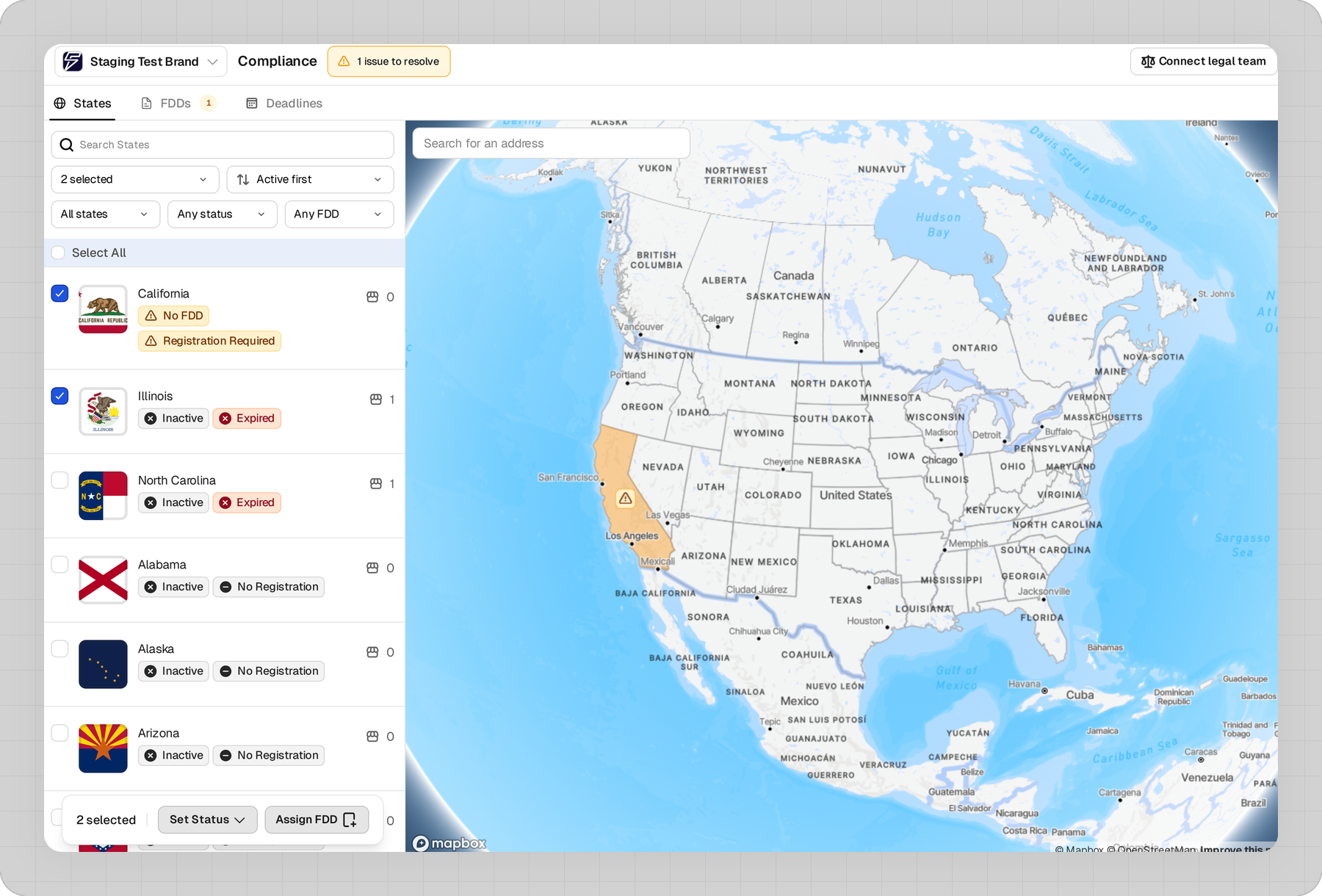
Checking one or more states raises a bar at the bottom of the panel with Set Status and Assign FDD.
Setting compliance up for the first time is walked through in How to Set Up Compliance in Lite.