About Email Performance
The Content tab of the Workflows page is where Franchise Systems Ai (FS Ai) shows how your email is performing: what went out, how much of it was delivered, and what bounced.
Go to Marketing → Workflows, Sales → Workflows, or Operations → Workflows, then select the Content tab.
Each department keeps its own templates and its own numbers. What you see here covers only the email that department sent.
Note: The Analytics tab on this page, and the Emails tab on Sales → Analytics, were both retired. Their numbers live here now.
The summary tiles
Three tiles sit at the top of the tab:
- Total Audience: the number of people in scope for this department's email. Prospects and applicants for Marketing and Sales, franchisees for Operations.
- Templates: how many email templates exist in the department.
- Total Emails Sent: every email this department has sent, across all templates.
The tiles update as new email goes out from the department.
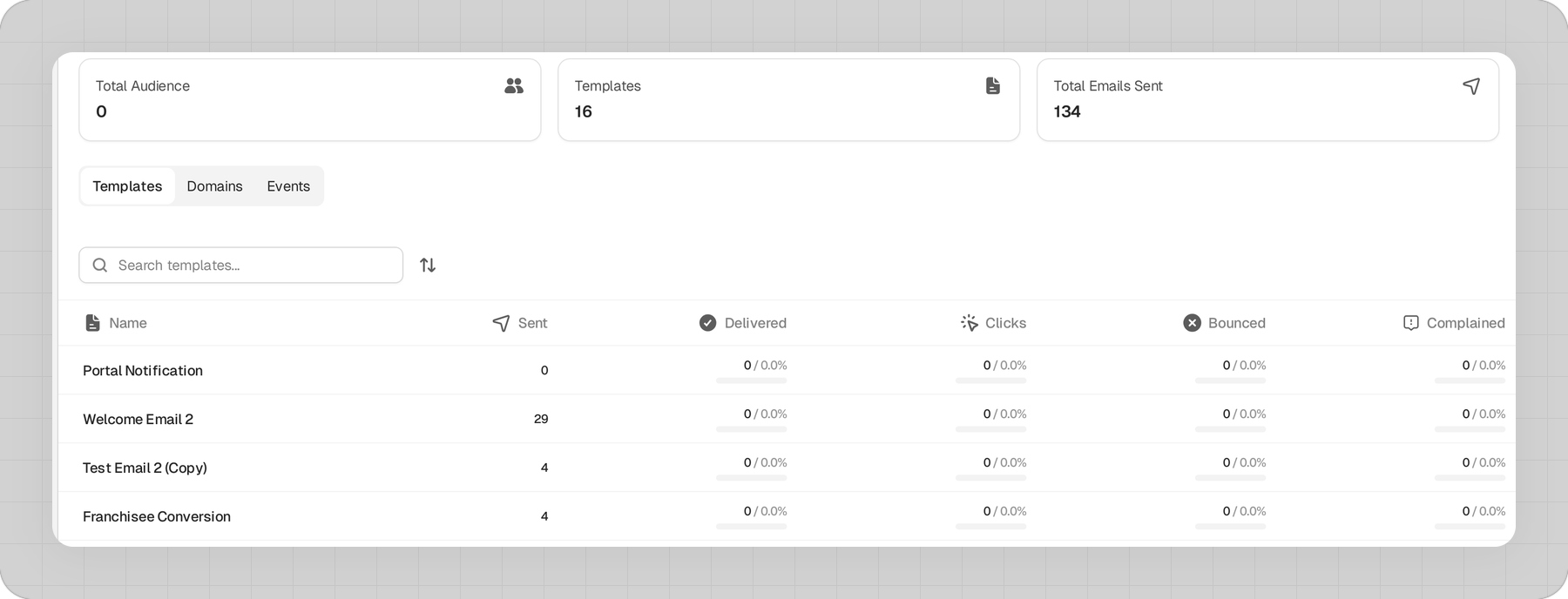
The template table
Below the tiles, one row per email template. The columns are Name, Sent, Delivered, Bounced, and Complained.
Use Search Templates... to find one by name, the filters to narrow the list, and the column headers to sort.
Each row also shows where that template is used, so you can tell at a glance which workflows send it.
Select a template to open it in the editor. See How to Build an Email.
All email events
The tab has a second view: a log of every send event in the department, one row per event, showing the recipient, the event type, and the template.
Search it by recipient or template name, or filter by event type. Select Content at the top left to go back to the template table.
Use this when you need to confirm whether one specific message reached one specific person, rather than how the department is doing overall.
If a section looks empty
A brand new template shows zeros across the board until its first send goes out. The event log shows "No events found" until the department has generated an event.
Before you can send at all
If your brand has no name and physical address on file, the tab shows a Missing required brand information banner and nothing sends. A brand name and a physical address are required for CAN-SPAM compliance. The banner links straight to your Brand Workspace Settings.
Two more things lower the number delivered: contacts who have unsubscribed are dropped at send time, and an address that has not been verified is held back. See About Lead Email Verification.
For where per-workflow numbers live, see About Workflow Runs and Performance.